How to save a tab in Chrome without losing your place
Learn the practical ways to save a Chrome tab for later, from bookmarks and reading lists to tab manager extensions that keep tabs organized by project.
Published by tabExtend on · Updated
Quick answer
Bookmark a page when you only need the URL, save a Chrome tab group when several open tabs belong together, and use a tab manager when those tabs need project context, notes, reminders, or a reliable place to return later.
| Method | Best for | What it preserves |
|---|---|---|
| Bookmark | One long-term reference | URL and title |
| Reading list | One page to read soon | A lightweight read-later entry |
| Saved tab group | Related tabs you want to reopen | The Chrome group and its tabs |
| tab manager | Ongoing projects and research | Tabs plus organization and, depending on the tool, notes or reminders |
Saving a tab should be simple, but the right method depends on why you are saving it. A recipe, a research source, a client dashboard, and an unfinished task do not all belong in the same system.
The fastest ways to save a tab
- Bookmark it if you only need a long-term link.
- Use Chrome's reading list when you plan to read one page soon.
- Pin the tab when you need it open all day.
- Use a tab manager when the tab belongs to a project or task.
When bookmarks are not enough
Bookmarks work well for permanent references, but they are weak for active work. They rarely explain why the page mattered, what you planned to do next, or which project the tab belonged to.
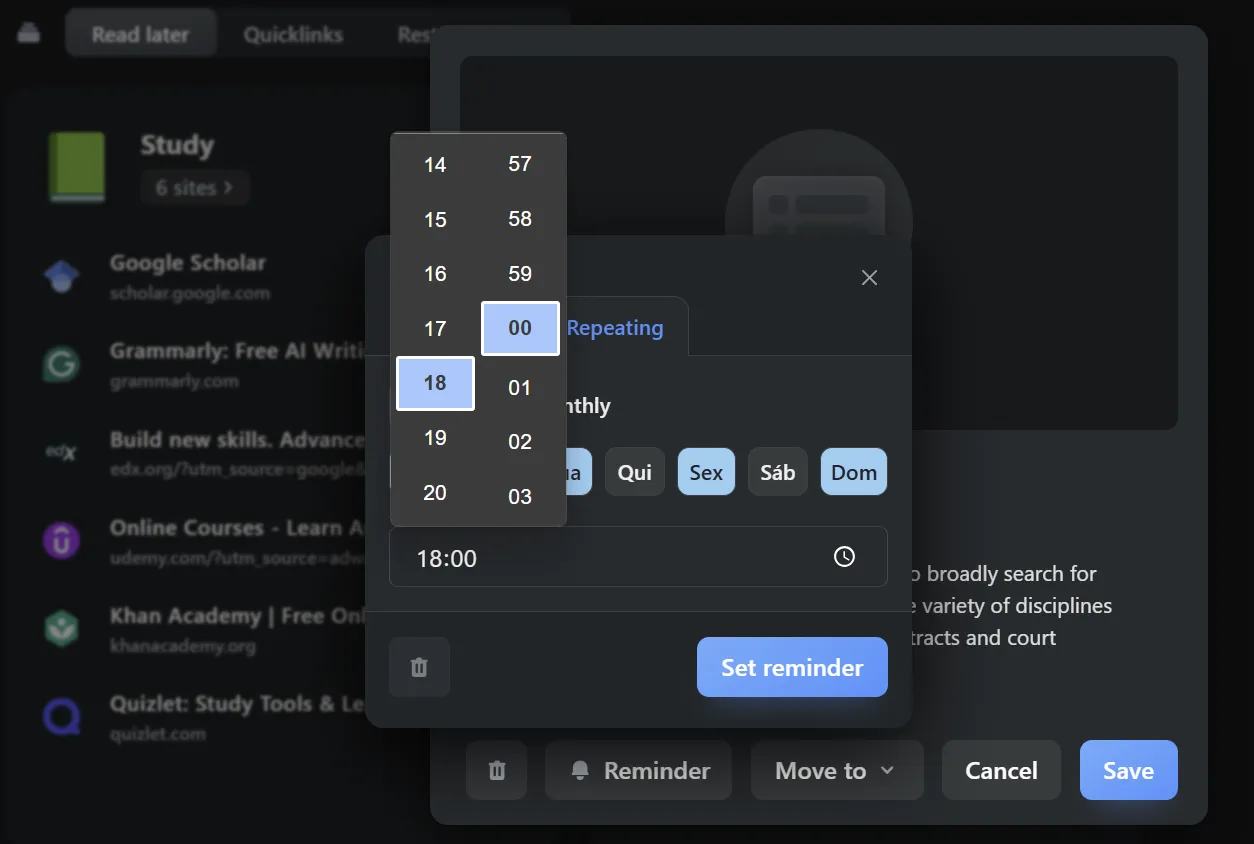
That is where a tab manager helps. With tabExtend, you can save a tab into a visual group, close it from your active window, and keep the link beside notes, reminders, and related resources.
How to save a tab with tabExtend
- Open the tabExtend dashboard in your new tab page.
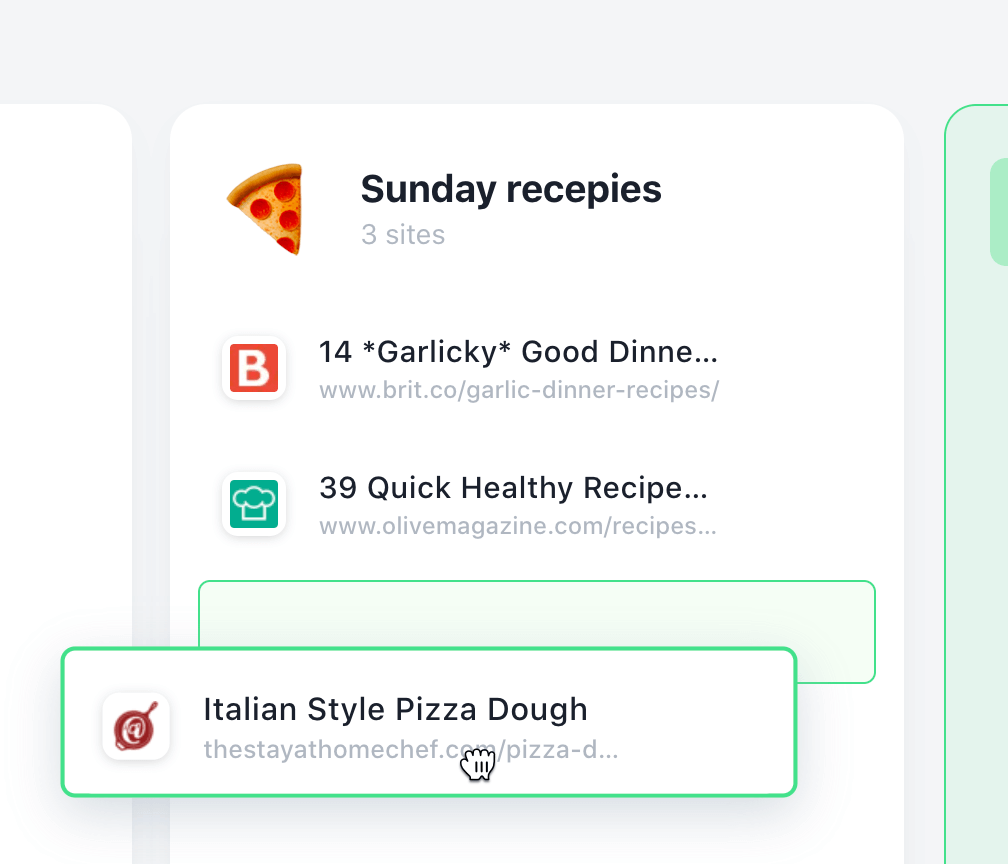
- Drag a tab from the active tabs list into the group where it belongs.
- Add a short note if the tab needs context.
- Set a reminder if the tab represents follow-up work.
A better habit: save tabs by project
Instead of saving tabs into one large pile, create spaces for projects, courses, clients, writing, shopping, or research. When you return, you see the whole context instead of a mystery list of links.
If you want the detailed walkthrough, start with the tabExtend save tabs guide.
If several related tabs need to stay together, use the guide to saving Chrome tab groups.
Sources